
MCP access keys & authorisation
Connect as a named Talvi user, understand OAuth, and manage the connection.
A connection belongs to a user and an agent
An MCP access key is created for a selected Talvi user on a particular AI Agent. It binds the connection to that user, agent, dataset, and Talvi instance. The label “Talvi AI” in Claude is a friendly connector name; it does not select the dataset.
Use an individual’s key for that individual’s client connection. A shared connector definition does not mean everyone should share the administrator’s credential. Choosing a different agent in the Talvi website does not automatically retarget an existing MCP connection.
Get the URL and key from AI Agents
An administrator with the relevant access opens More.. → AI Agents → Access keys on the intended agent, chooses MCP access key, and selects Create key for user. Select Create MCP key and copy the full key when it is shown. See the illustrated access-key steps.
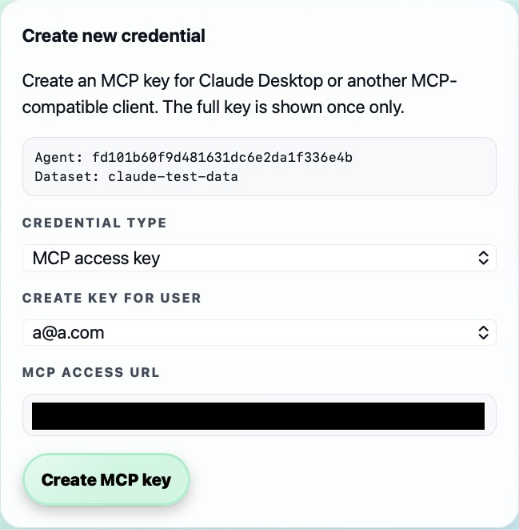
Your administrator will provide the MCP access URL for your Talvi deployment. Enter that address in your client’s connection settings. Server addresses are hidden in the screenshots.
The full key is displayed once. If it is no longer available, create a replacement through the authorised workflow. Not every deployment, account, or AI Agent exposes this option.
What happens in the OAuth window
Clients supporting Talvi’s OAuth flow discover the server’s authorisation endpoints and register the client automatically. The connection then opens a Talvi-branded page headed “Connect your AI assistant to unleash the power of Talvi!”
- Check that this is your intended Talvi deployment.
- Paste the MCP access key provided by your administrator into Talvi MCP access key on that authorisation page.
- Select Connect Talvi.
- The client completes the hand-off and receives a short-lived access token representing the same Talvi user and agent.
- Return to the client and check that Talvi’s tools are listed.
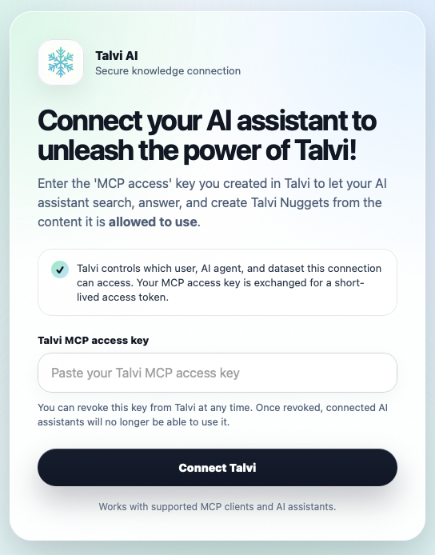
This is the shared Talvi authorisation step for clients using OAuth. A client may first show its own confirmation, such as Claude’s Continue connecting screen. Direct API-key connections use the client’s credential settings instead.
Enter the key in the connection or authorisation form, never into an ordinary chat prompt. The key is not a Claude password, Microsoft password, or OAuth client secret.
The current server uses an authorisation-code flow with PKCE and automatic client registration. It does not implement refresh-token grants. A client may therefore require reconnection when its access token expires. Access-token lifetime is deployment-configurable; the code’s default is one hour.
Clients using API-key authentication
Where the client offers a header-based API-key connection, Talvi accepts X-API-Key with the key as its value. It also supports Authorization: Bearer <key>. Configure this in the client’s credential form; do not append the key to the endpoint URL.
The Copilot Studio guide includes the API-key alternative. OAuth availability depends on the deployment’s configuration and the client’s supported flow.
Revoke or reconnect
Use Existing credentials → Revoke in Talvi when the key should stop working. The server checks whether the backing key is revoked when authenticating OAuth requests as well as direct-key requests. Disconnect the client when it is no longer needed.
Previously opened viewer links have their own short expiry and are not a replacement for a working MCP connection. Avoid sharing them as permanent document links.
Connection checks
| Symptom | Check |
|---|---|
| No Access keys action | Deployment support, account permissions, and the agent’s output/capabilities. |
| Missing or invalid access token | Correct key type, correct deployment, revocation, or an expired OAuth session. |
| Answer uses unexpected knowledge | The agent and dataset associated with the key, not just the client’s display name. |
| Tool is blocked or never runs | Client tool permissions, workspace policy, and whether the connector is enabled for this chat. |
| Rate limit exceeded | Pause and retry after the stated interval; ask the administrator about the user’s limits. |
| Answer works but source does not open | Client MCP Apps support, source availability, and viewer-link expiry. Try the native content fallback. |
Talvi records MCP activity for investigation. Administrators can correlate the user, tool, query, and outcome with the agent’s logs and conversations.