Connect ChatGPT to Talvi
Set up a custom MCP connection and test Talvi answers and source viewing.
Prepare the Talvi connection
Connect ChatGPT to the knowledge and tools available through your Talvi AI Agent. You need access to custom MCP connections, the MCP access URL provided by your administrator, and a Talvi MCP access key for your user and agent.
Add a custom MCP connection
Current OpenAI guidance uses Settings → Security and login → Developer mode, then ChatGPT Plugins → plus. Enter a name and description, choose the connection method, and supply the MCP endpoint. Create the connection and inspect the discovered tools. Availability depends on account and workspace policy. See OpenAI’s connection guide.
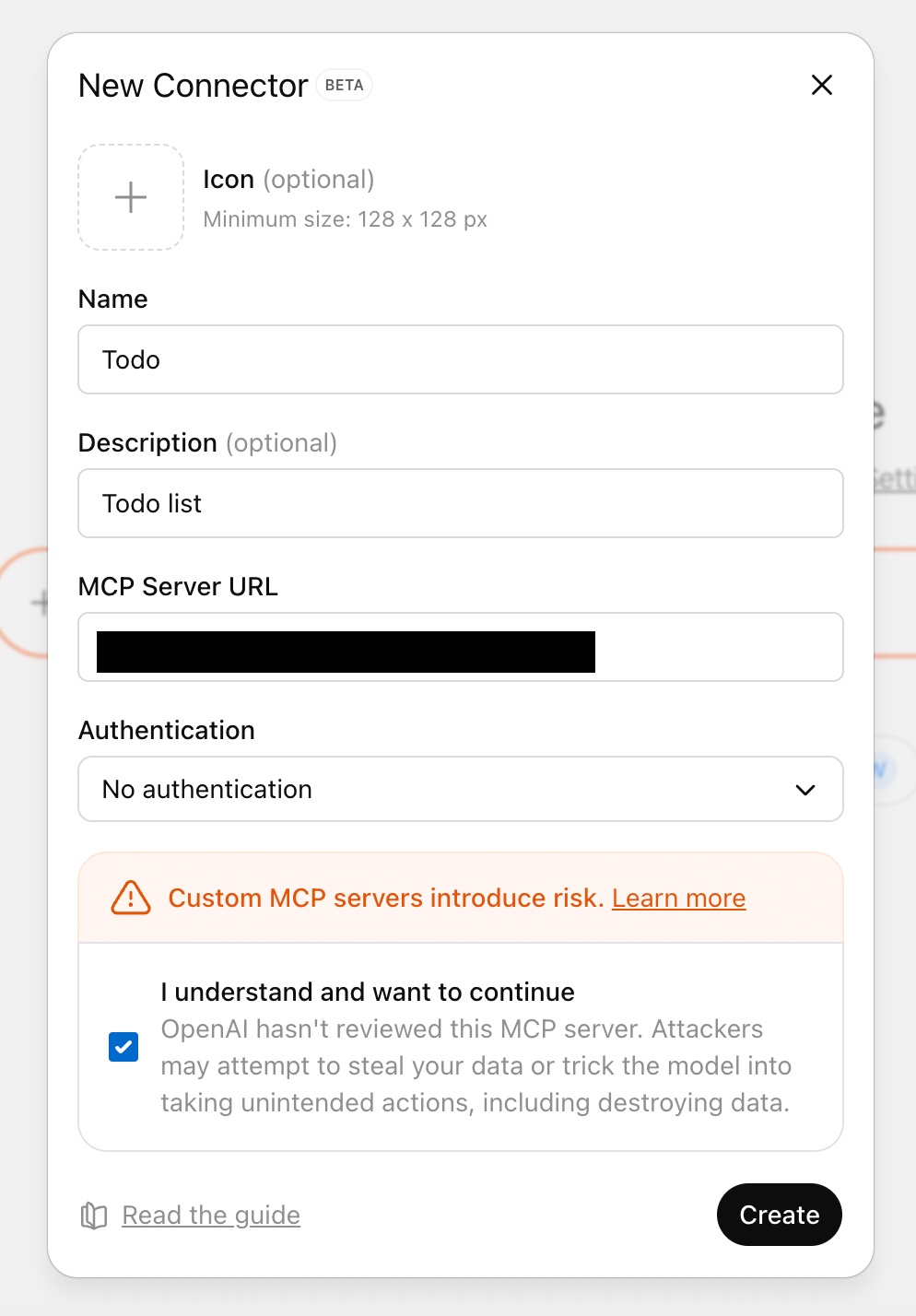
Screenshot: OpenAI’s MCP quickstart. This provider example uses a sample service and no authentication; for Talvi, use the MCP access URL provided by your administrator and OAuth. Labels may vary by ChatGPT version.
For Talvi, use Talvi AI as the name and the exact MCP access URL supplied by your administrator. Describe it as a source-backed knowledge assistant with file viewing and Talvi Nugget creation. When prompted to authorise, complete the Talvi OAuth page using your MCP access key. Do not put that key in the description or chat.
The Talvi authorisation screen shows the Talvi MCP access key field and Connect Talvi button. Enter the key provided by your administrator for your user and AI Agent. This shared screen appears during OAuth setup; any preceding confirmation belongs to the client you are connecting.
If manual OAuth fields are offered, do not use the MCP key as a client secret. Talvi’s current flow uses automatic client registration and PKCE; ask your deployment administrator to check discovery if the client cannot negotiate it.
Try the tools in a conversation
Start a new conversation and select the connection from the tools menu. After server metadata changes, refresh the developer-mode connection and start a new conversation. OpenAI documents this test and refresh workflow.
Ask a question about content in the connected AI Agent’s dataset and request its supporting source. Confirm that ask_talvi_with_source_viewer runs, the answer retains Talvi’s citations, and any source shown belongs to the connected agent. Request another source or a file-focused follow-up to check navigation.
Interactive sources and skills
ChatGPT supports the MCP Apps standard for optional interactive tool interfaces. See OpenAI’s MCP UI guidance. Talvi advertises an MCP Apps source viewer, but its PDF, media, and SCORM experience must still be validated in your actual ChatGPT environment. Use load_source_file for available native content if the visual route is unavailable.
Add the Talvi workflow as a plugin
ChatGPT’s equivalent is a skill packaged in a plugin, alongside the MCP connection. The Markdown defines when and how to use Talvi’s tools; the connection supplies authorised access. See OpenAI’s skills guide.
Start with the client-specific Talvi workflow. Keep SKILL.md in a folder named talvi-mcp-workflow, with its name, description, and workflow instructions. The existing Claude ZIP needs adaptation; attaching it to an ordinary conversation is not the plugin installation process.
Personal setup in ChatGPT Work on desktop
- Register and authorise the Talvi MCP connection as described above. Copy its technical connection ID, beginning
plugin_asdk_app, from the connection page’s browser address. - In ChatGPT Work, invoke @plugin-creator. Ask it to package the prepared Talvi workflow with that existing connection and create a personal marketplace entry. Supply the connection ID, not your MCP access key.
- Review the generated package: the workflow belongs under
skills/talvi-mcp-workflow/SKILL.md; the registered connection mapping must identify Talvi. - Refresh or restart the desktop app, select the local source in the Plugins Directory, install the plugin, and start a new chat.
This local authoring route depends on the surface and workspace settings. OpenAI’s packaging guide covers the connection mapping and local installation.
Publisher-managed upload
For a distributed plugin, its publisher opens the plugin submission portal → Create plugin → With MCP and adds the prepared skill bundle in Skills. Include the tested SKILL.md and its required supporting files. Complete the remaining submission requirements; uploading a bundle creates a draft, not an installed or published plugin. See OpenAI’s submission guide.
The portal can also import skills from a server during Scan Tools when the server implements OpenAI’s skills discovery extension. A normal Talvi MCP connection does not automatically import the downloadable Claude ZIP. Imported skills are snapshots; updates require a new scan and plugin version. See OpenAI’s MCP skill import guidance.
Check that the workflow is active
Use a topic present in the connected agent’s dataset. Check that the assistant starts with ask_talvi_with_source_viewer, retains Talvi’s sources, opens a selected source using its returned location, and uses talk_to_file for a file-scoped follow-up. Request a Nugget only when you intend to create one, and confirm the requested format is used.
Installing the skill does not change the knowledge available to your key or guarantee interactive source viewing. If no installable Skills/Plugins route is available in your surface, ask your administrator to provide a supported package; do not assume that a file attachment installed the workflow.