
Clean duplicate and similar files
Compare an 87% match, inspect changed pages, and review a deletion candidate.
What you will achieve
Periodically review your datasets for duplicate or similar files, compare the differences, and choose which version to keep. Run this review after substantial imports or as part of your regular content maintenance.
1. Open the suggested matches
Open Talvi Data Cleaner and select Begin Talvi Data Clean if no session is active. Choose Duplicate Files.
The percentage helps you prioritise comparisons. It is a similarity signal, not a recommendation to delete a file. A high match may still contain an important update.
2. Select the 87% example
Select the group for text-duplicate-EDIT-EACH-PAGE.pdf, showing 87%, then select text-duplicate-ORIG.pdf under Candidates. The comparison places the Master alongside the Candidate. Your own dataset will have different filenames and scores.
Select Full Screen to give both documents and their file seekers more space.
3. Inspect the first red marker
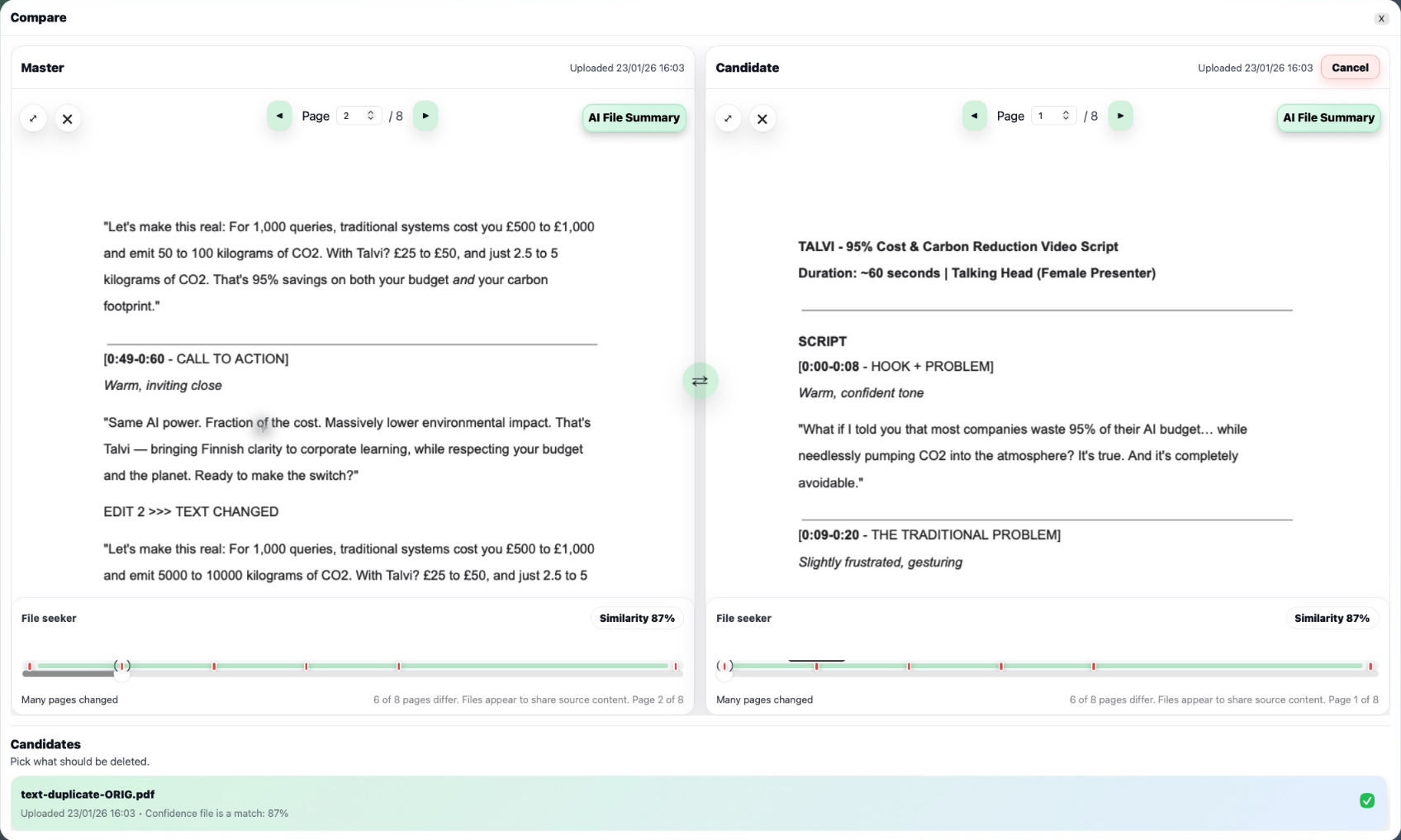
Click the first red dot, at the left of the Master’s File seeker, to jump to the first indicated difference. Scroll within the page to read the marked edit, then compare the corresponding page in the Candidate. Use its page control or file seeker if you need to align the views.
Red markers point to differences to inspect; the page preview lets you read the actual change. Continue through the remaining markers before deciding whether the changes should be retained. In this example, the edited document and original share much of their content, but several pages differ.
4. Select the file to remove
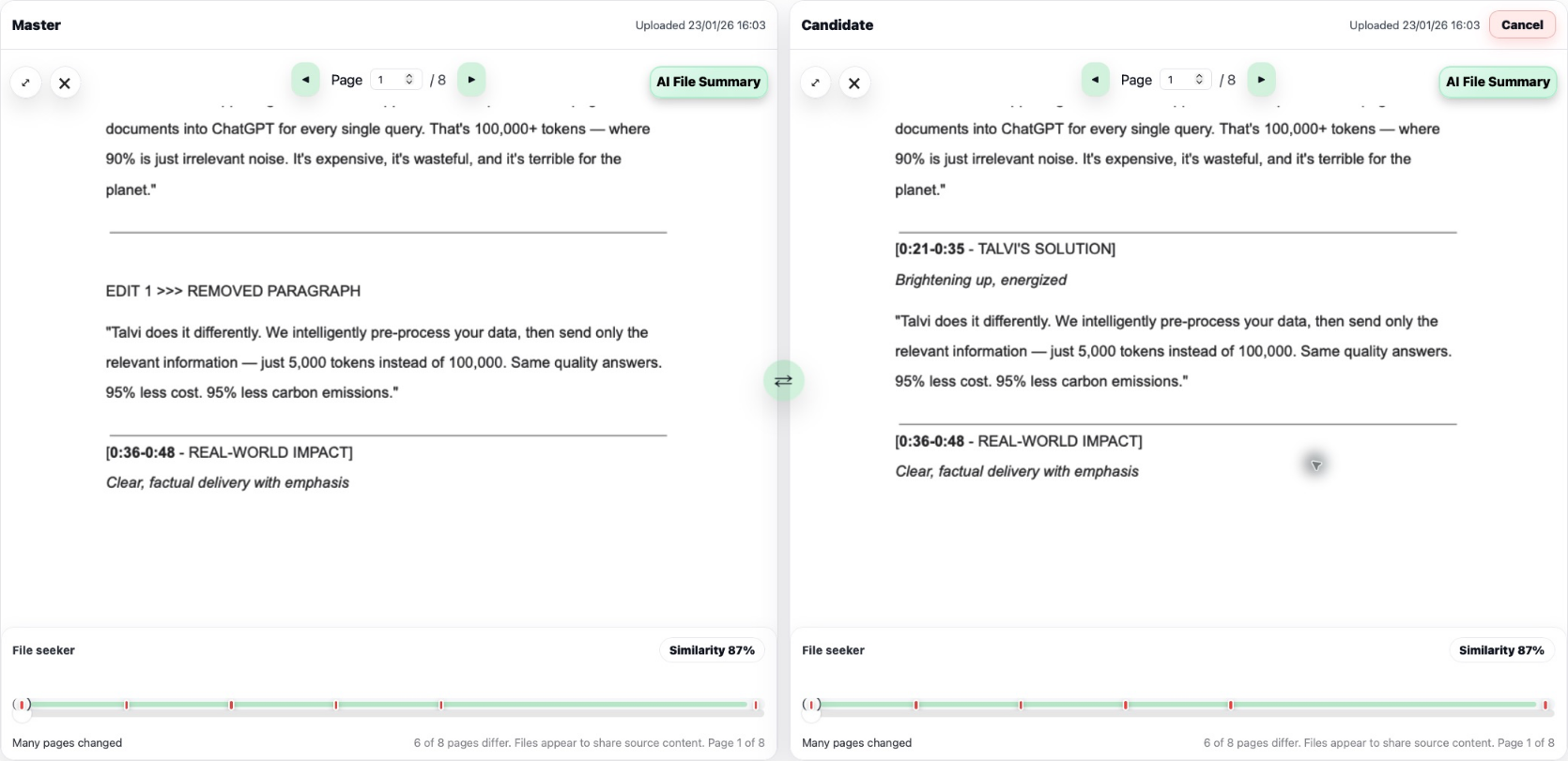
Decide which version your agents should retain. If the edited file is the version to keep, select Mark for deletion for text-duplicate-ORIG.pdf in Candidates. The checked row shows it has been selected for the queue. The candidate’s Delete control also marks it; when marked, that control becomes Cancel, which undoes the selection.

Master and Candidate are comparison roles, not guarantees of which file is newest or correct. Use the swap control if you need to compare in the other direction. Keep both when their differences serve a useful purpose.
5. Review the deletion queue
Close the comparison and open Deletion Queue. Review all selections, including decisions already present in the session. Select Commit deletions to inspect the final list; the final Delete action is permanent. See the removal recipe for the final review and test option.
Result: redundant files are identified through a content comparison, with selected removals reviewed before they are applied.
See also: Talvi Data Cleaner · Update your AI agent’s data.