
PDF pages & navigation
Open the referenced page, follow highlighted passages, and explore a document with Talvi Coach.
Open the page behind an answer
Ask a question about a PDF available to your AI Agent, then select its source chip under View Sources. For example, ask “What is the principle of Attention Is All You Need?” and open the paper’s PDF chip.
Talvi opens the relevant page when the source includes a page reference. Matching text may be highlighted so you can read the passage in context. Several chips for the same PDF can point to different passages.
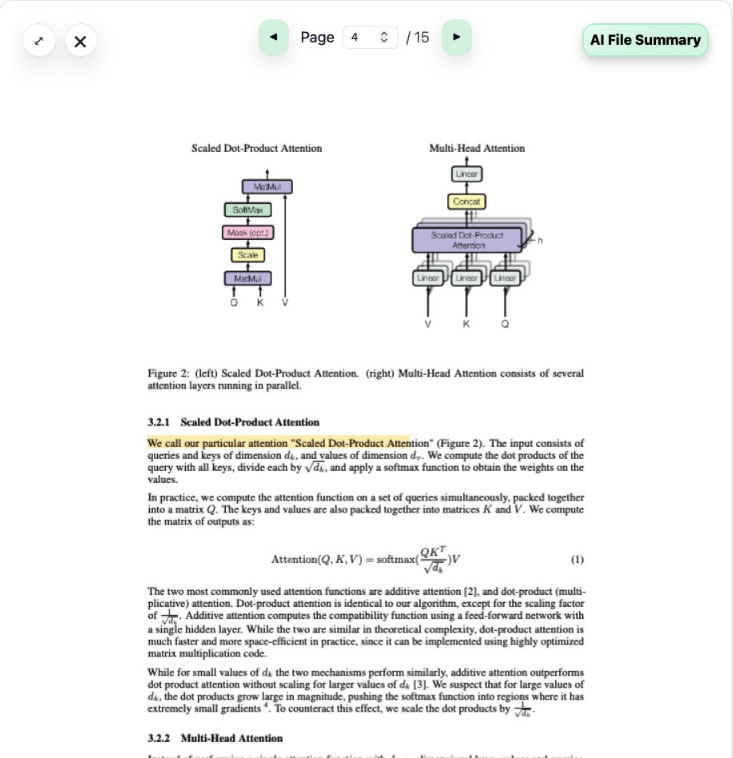
Move through the document
- Select ◀ or ▶ to move back or forward one page.
- Enter a number in Page and press Enter to jump directly to that page. The number after the slash is the total page count.
- Use the viewer’s expand icon for a larger reading area. Select its close icon to return to the conversation.
- Follow internal document links where available to move to a linked page.
The page number counts pages in the PDF, including any cover or introductory pages. It may differ from the number printed on the document itself.
Explore the document further
Open AI File Summary for an overview and section navigation where available. To ask follow-up questions about this PDF, select the small blue coaching icon on its source chip and explore with Talvi Coach.
If the viewer is still loading, allow it to finish before changing pages. For persistent problems, see troubleshooting.