Connect Slackbot to Talvi
Understand Slack’s MCP client route and how it differs from a Talvi Slack app.
Slackbot can be an MCP client
Slack documents a Slackbot MCP Client that connects remote servers through a Slack app. This is separate from the Slack MCP Server, which lets other assistants work with Slack data. See Slack’s MCP overview.
Your administrator must enable the appropriate Slack features and approve app installation for your workspace.
Administrator setup
In the Slack app configuration, open Features → MCP Servers → Get Started. Enter Talvi AI, the MCP access URL provided by your administrator, and Dynamic Client Registration as the authentication method. Save the configuration and install the app in the workspace through OAuth & Permissions. The MCP setup adds the required mcp:connect scope. Slack requires Streamable HTTP for this route. See Slack’s MCP client setup.
Talvi supports OAuth discovery, automatic registration, and PKCE. Use the deployment’s enabled OAuth endpoint and test compatibility before rollout. Its current authentication middleware does not accept Slack-signed user identity as a substitute for a Talvi credential, so Slack identity and No auth are not the appropriate choices for this Talvi server.
Where workspace approval is required, an administrator must approve the app before users can connect it. See Slack’s MCP app approval guidance.
Connect as an individual user
Open a Slackbot DM, select Apps, and add the approved Talvi app. Complete its OAuth authorisation, then inspect the tools through Manage. Review the available tools before asking a question relevant to your agent’s knowledge. Slack offers per-call approval controls, and tool calls must return within 60 seconds. See Slack’s connection and testing flow.
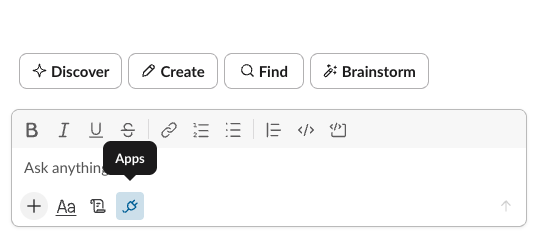
Screenshot: Slack’s MCP client guide, showing where to find Apps.
On Talvi’s authorisation page, enter the MCP access key created for your user and AI Agent. That key determines the Talvi knowledge available to Slackbot. Choose a topic covered by the connected dataset and request supporting sources.
The Talvi authorisation screen shows the Talvi MCP access key field and Connect Talvi button. Enter the key provided by your administrator for your user and AI Agent. This shared screen appears during OAuth setup; any preceding confirmation belongs to the client you are connecting.
Validate the answer, source references, and any visual viewer separately. Long answer or Nugget generation can exceed the client’s timeout; avoid repeatedly creating the same Nugget when the client times out and first check whether Talvi already completed it.
Talvi Slack app versus Slackbot MCP
Talvi also has a separate Slack app output and credential type. Its app integration key is not an MCP access key. Follow the route deployed by your organisation: the instructions above connect Slackbot to Talvi MCP Server; they do not configure the separate Talvi Slack bot output.