
MCP Tool Store
Search the MCP Registry, configure connections and OAuth, preview tools, and manage agent skills.
Open MCP Tool Store
Choose More.. → Super Admin → MCP Tool Store. This optional capability appears only when enabled for your account and deployment. The store makes external tools available to Talvi agents as skills. To connect an external client to Talvi, use MCP access keys instead.
A useful order is: find a server → save its configuration → connect → review its tools → activate → assign it to an agent. The exact authentication steps depend on the server.
Search MCP Registry
Local filter searches the catalog already available in Talvi. Search MCP Registry looks for remote server listings and imports matching metadata into that catalog. It does not automatically connect an agent to every result.
- Select Search MCP Registry.
- Enter a keyword, such as OpenAI.
- Set the Import limit to control how many matching records to bring into the catalog, then select Search.
- Review the matching cards. Save To Store opens configuration for a selected server; Preview Tools helps inspect it. Don't Import dismisses an unwanted catalog suggestion.
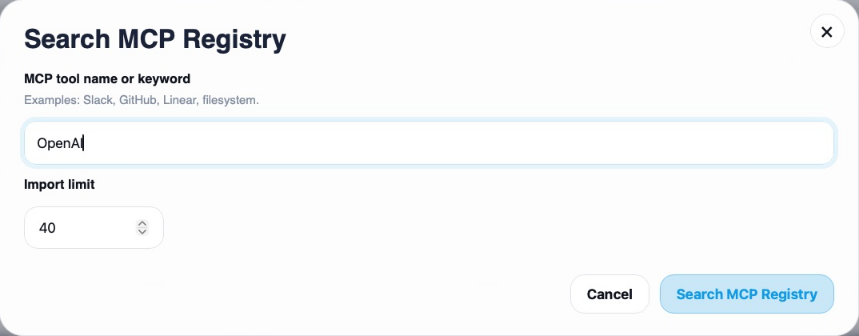
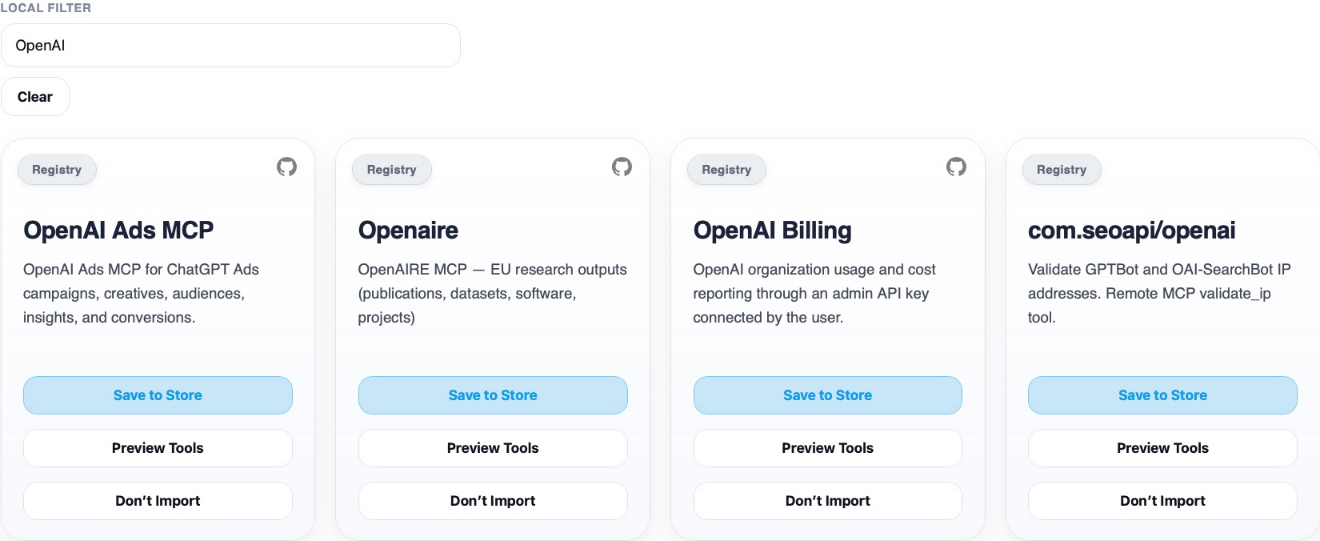
Talvi uses the official MCP Registry by default, with an option for deployment-specific registry configuration. It is a community-driven registry containing publisher and community listings. A keyword match such as “OpenAI” does not mean that OpenAI publishes or endorses that server. Check the publisher namespace, endpoint, and provider documentation before connecting. See the MCP Registry documentation.
The current import supports compatible remote HTTP servers. A server that only runs locally through a command-line process may not appear as an importable result.
View Configuration
On a saved server card, select View Configuration. For Atlassian, this displays the server identity, endpoint metadata, any required environment fields, and its icon settings. Some servers need no environment variables because authentication takes place through OAuth.
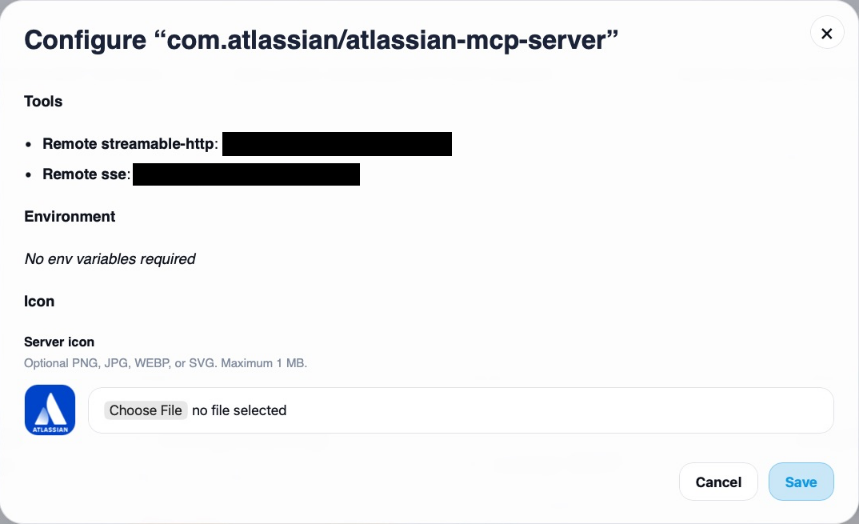
Review the endpoint and supply any required settings for your deployment. Select Save to apply edits, or Cancel to close without changing the connection. Registry metadata can differ from the endpoint selected for a live connection; Preview Tools shows the connection currently in use.
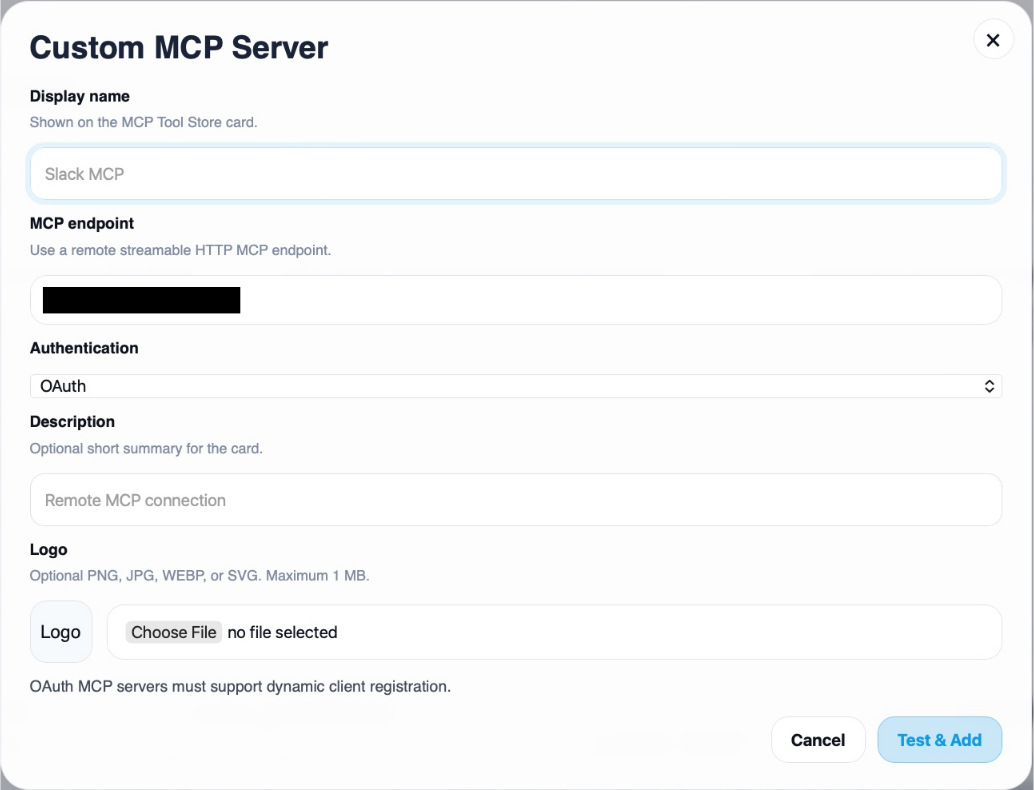
For an endpoint outside the catalog, choose Custom MCP Server. Enter its name, remote streamable HTTP endpoint, authentication option, and optional description and logo. Test & Add checks the connection before adding it. The OAuth option requires a server supporting dynamic client registration.
Connect with OAuth
OAuth lets the provider authorise Talvi to use its tools without entering your provider password into Talvi’s configuration form.
- Save the server configuration, then select Connect OAuth when offered.
- A provider sign-in and consent window opens. Sign in to the intended account and review the requested permissions.
- Complete the provider’s authorisation flow and return to Talvi. The card updates its connection state.
- Use Reconnect OAuth if the existing connection needs authorising again.
An OAuth connected status confirms that an authorisation is present. It does not mean that every tool is enabled or that an agent has been assigned the server. For Atlassian, the connected account’s permissions also determine which Jira or Confluence resources tools can access.
Check Connection and active status
Use Check Connection to ask Talvi to recheck a saved server. Review the resulting card state and any error before relying on it. This action also requests an active connection; it is more than a passive status display.
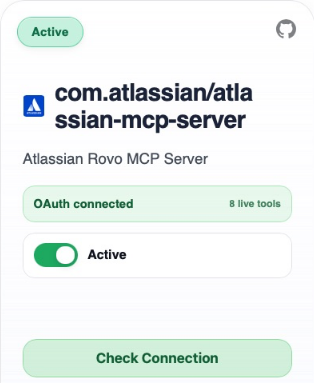
The Active switch controls whether the server is available for use in Talvi. Switch it off to make it inactive while retaining its saved configuration. Switch it on after its required authentication and settings are ready. An OAuth connection must be completed before its activation control becomes available.
An active server still needs an agent assignment. Deactivating a server can interrupt skills used by agents already assigned to it; it does not delete the provider account or its data.
Preview Tools and choose what is enabled
Select Preview Tools to inspect the live connection and its tool catalog. The connection panel shows transport, authentication, and endpoint details. Refresh Live Tools, when available, retrieves the current catalog from the server.
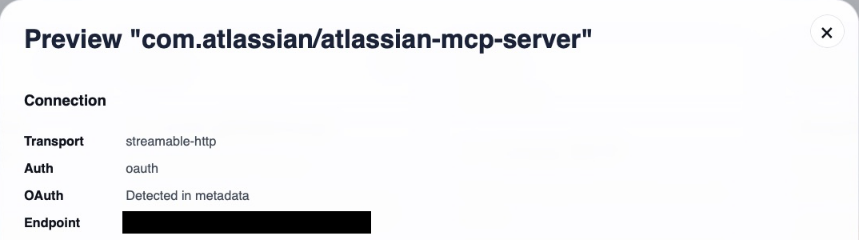
Each tool shows its name, description, input fields, and enabled state. Required inputs must be supplied when the tool runs. For example, a Jira comment tool needs identifiers for the site and issue, plus the comment body. Previewing its schema does not post a comment.
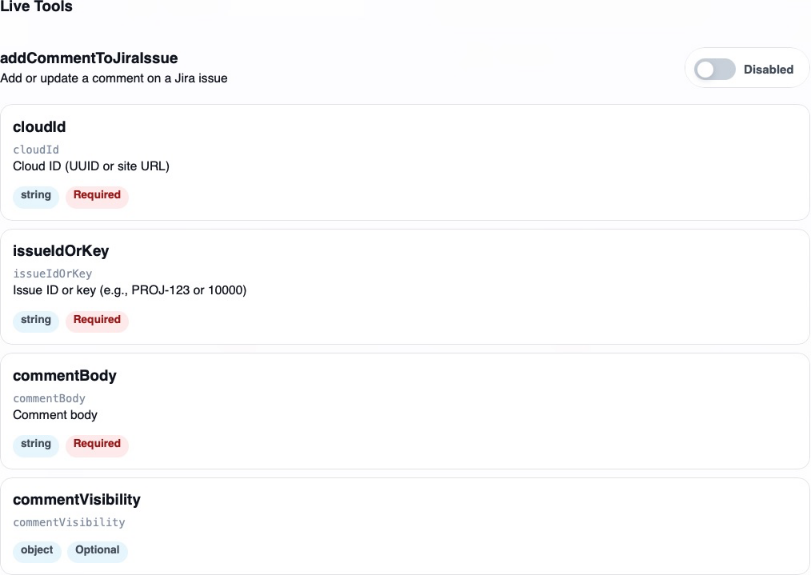
Use each tool’s switch to enable only the operations appropriate for your agents. These switches save changes as you use them. The enabled-tool count can be smaller than the complete live catalog. A connected, active server with its useful tools disabled will not provide those operations to an agent.
Assign skills to an agent
For a new agent, use AI Agent Studio → Skills. For an existing agent, open MCP Tools. The selector lists active servers, supports up to four selections, and provides View tools before you add a server. Finish with Save MCP Tools.
These controls work together: the store manages the connection, tool switches determine the available operations, and the agent’s MCP Tools selection decides which connections it can use.
If a connection is unavailable
Check the card’s error, required configuration, OAuth status, active switch, enabled tools, and agent assignment in that order. A successful connection can still return a provider permission error for a particular resource. If MCP Tool Store or MCP Tools is absent, the feature may not be enabled for your account, deployment, or agent type.