
Choose an agent & explore skills
Understand why different assistants offer different knowledge and tools.
Choose the right knowledge
Use Active AI Agent above the conversation to choose an assistant assigned to your account. The menu can display both an agent name and a dataset name. Changing the agent refreshes the experience and starts a fresh chat for that agent. You can also change the default from Account.
If the selector is disabled, your administrator manages the selection. If no agents are available, ask your administrator to check your access. The header itself can be hidden by configuration.

Inspect Agent Skills
Select Agent Skills to see the active tools the agent can use. The number beside the button is the skill count. The panel lists each tool’s name, description, and service/provider when available. Close it with the close button, Escape, or by clicking outside the panel.
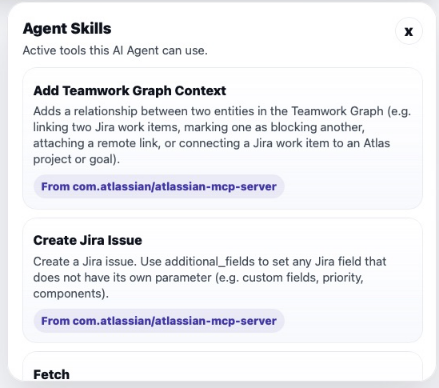
This screenshot uses a different agent from the payslip example. Its connected tools are examples of that agent’s setup, not tools available to every Talvi user. A count of zero means no skills are listed; the agent may still answer from its knowledge.
Understand tool activity
When a response includes connected-tool events, Talvi can display an MCP tool activity panel with the service name and labels such as Called, Checked, or Tool error. MCP is the connection used to make external tools available. A tool error is different from a missing document; try a narrower request or contact support with the tool name and your question.
The activity panel reports what happened. A displayed “Approval requested” event is not, by itself, an approval button in this interface.
Why controls differ
The agent can determine its role, suggested questions, branding, visible header, and whether Nuggets are offered. Mentor with Memory agents may use saved context across conversations. Account permissions also govern agent changes.