
Build a dataset and create an AI agent
Create the knowledge base first, then connect a new AI agent to it.
What you will achieve
Create a dataset, prepare its source files, and build an AI agent that uses that knowledge. A dataset can serve many AI agents; you do not need another copy of the same files for each agent.
1. Create the knowledge base
Open More.. → Super Admin → Create Dataset → Upload Files. Enter a short Dataset description, choose Create a new dataset, and give it a recognisable name.
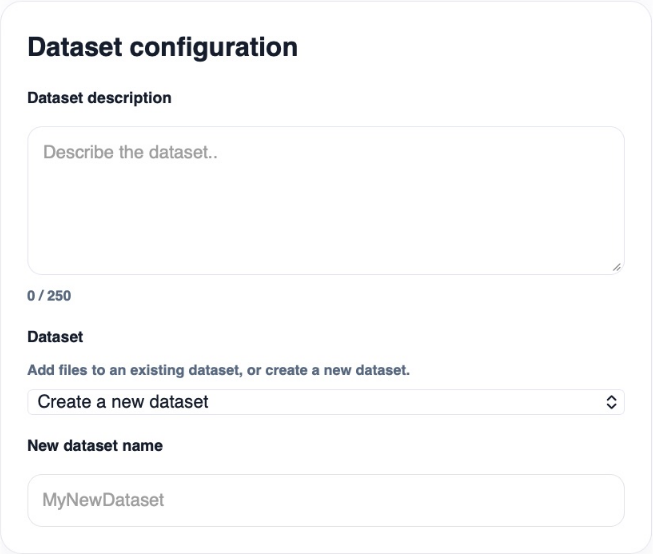
Add the source files from your device and select Upload Files. Choose material relevant to the agent’s purpose, and check the supported file types. The upload flow shows a total limit of 2 GB.
2. Wait for preparation and check the files
Return to Dataset activity and select Refresh. Check both Import data and Create dataset database: uploading files is only the first stage.
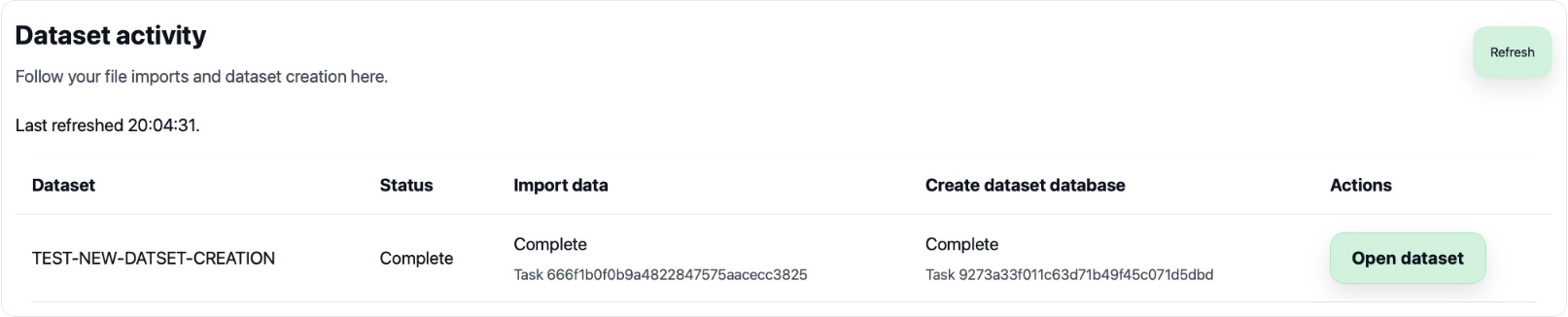
When preparation is complete, select Open dataset. Preview a representative file and check that the expected content is present. For connected sources and later updates, use the Data Import recipe.
3. Build the agent in AI Agent Studio
Open More.. → Super Admin → AI Agent Studio and select the AI Agent Studio creation card.

- Choose the Role that best fits the agent’s task.
- Write its Mission: who it helps, what it should do, and what a useful answer looks like.
- In Dataset, select the collection you just prepared and choose Use dataset. Check its name in Your pipeline.
- Add optional Skills, or choose Skip this step. You can add MCP tools later.
- Choose the Output. For an agent used in Get Answers, select Talvi AI Agent.
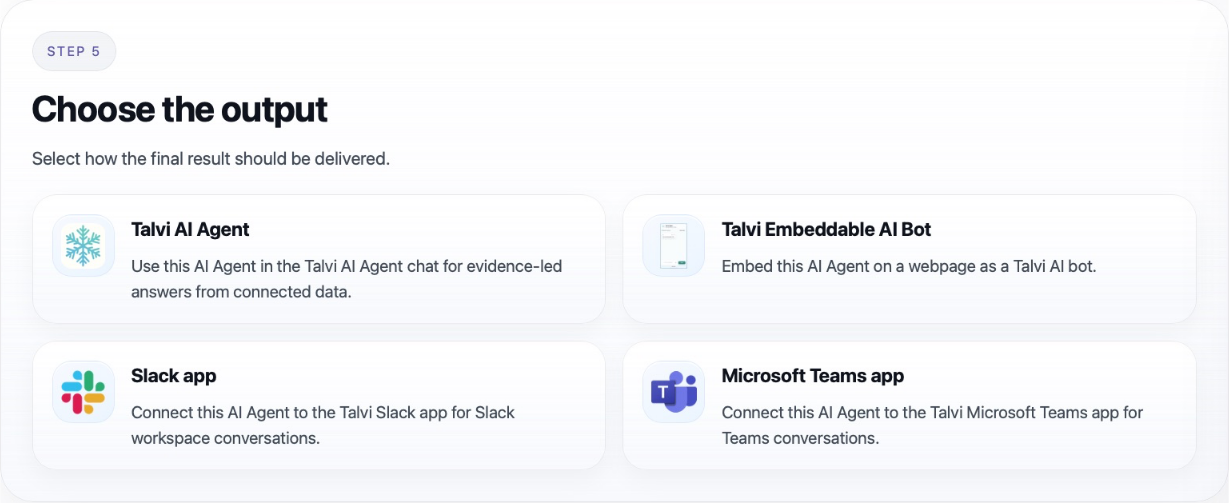
Complete the output details, give the agent a clear name, and select Save AI Agent. Open the saved agent and review Assign User Access so the intended people can use it.
4. Check the result
Select the agent in Get Answers and ask a question whose answer is in the uploaded material. Open its sources to check the answer against the originals. If the agent is missing, check its user access; if knowledge is missing, check dataset preparation and the dataset selected in the agent.
Result: a saved AI agent connected to a prepared dataset. Other agents can use that same dataset with their own roles, missions, and skills.
See also: Create Dataset · AI Agent Studio · Update your AI agent’s data.