Your account
Check your identity, select your default agent, and find session and privacy controls.
Check your signed-in identity
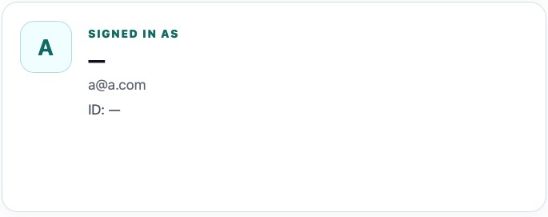
Select Account in the top navigation, or open the account link beside your avatar. The identity card displays the name, email, and ID values available for the session. A dash means a value was not populated in this view; the page does not offer profile-edit fields.
Change your default AI Agent
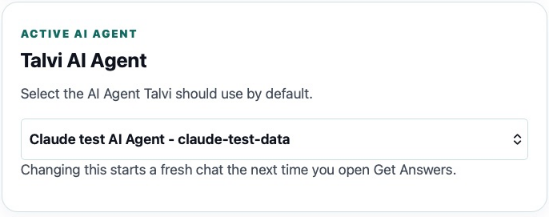
You can change your default AI Agent only if you have multiple assigned agents and your administrator allows switching. If you have one assigned agent, there is no alternative agent to select.
When switching is available, choose an agent from Talvi AI Agent. A successful update displays a notification and changes the default selection. The next visit to Get Answers starts a fresh chat for that agent. If your administrator controls this setting, the selector is disabled.
The same choice is available in the Get Answers agent header when that header is shown.
Session and destination
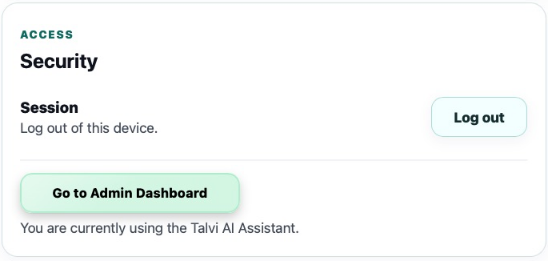
Log out signs out of this device’s current Talvi session and returns you to login. Privileged accounts can also see Go to Admin Dashboard. That destination does not grant additional permissions; its presence depends on existing account access. Administration is outside this edition’s scope.
Privacy links
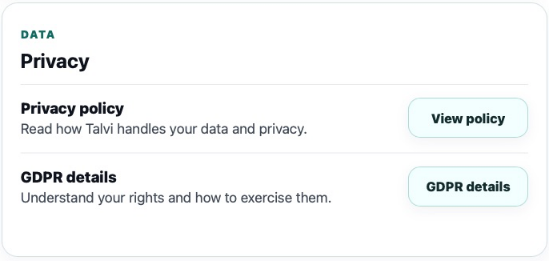
View policy opens the configured Talvi privacy page, and GDPR details opens the related information page. They open in separate tabs. This wiki describes how to reach those resources; consult the current linked policy for its terms.
If you need to sign in again, see Magic Link. For organisation-managed access, see Single sign-on.