
Import data & schedule syncs
Choose a source, confirm its destination, and monitor imports and scheduled updates.
Choose an import source
Open Data Import → Import New Data. The wizard follows Source → Destination → Sync → Review.
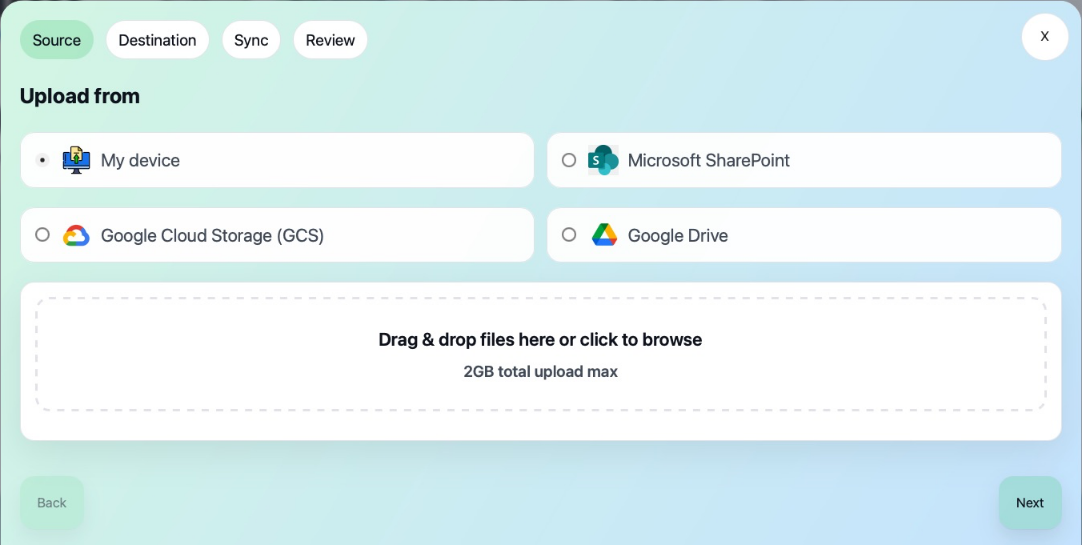
The wizard presents four standard source choices:
| Source | What to provide |
|---|---|
| My device | Drag files into the picker or browse your device. The total upload limit is 2 GB. |
| Microsoft SharePoint | Site URL and library or folder path, when this optional source is configured for your instance. |
| Google Cloud Storage (GCS) | A bucket, optional prefix, and the requested service-account JSON credentials. |
| Google Drive | Folder ID or URL, when this optional source is configured for your instance. |
SharePoint, Google Cloud Storage, and Google Drive are optional import sources configured when your Talvi instance was created. The available sources depend on your organisation’s setup. Custom import sources can also be added and appear here when configured. Their fields and connection requirements depend on the integration.
For accepted formats, see supported file types. A supported upload format does not necessarily have an inline preview.
Confirm the destination
Select the dataset that should receive the files and add a short description. Check AI agents using this Dataset before continuing: new knowledge can affect more than one agent when they share that dataset.
If you need a new dataset, see Create Dataset. For an existing collection, you can inspect its current files in File Management.
Choose a sync schedule
Local uploads are one-off imports. Connected sources can offer recurring sync schedules, such as hourly, daily, weekly, or monthly. Choose No schedule for a one-off connected import. Use the options actually displayed for your source.
Review and start
Check the source, destination, description, and schedule on Review. Tick I’m ready to start the import, then select Begin data import. Large files can take time to upload and process; keep the upload page open until the transfer finishes.
Monitor and maintain imports
- Active imports shows running jobs and refreshes automatically. Open a job to inspect its details.
- Completed / Failed provides history, date filters, and a Refresh action. Inspect a failed job’s error before retrying.
- Scheduled data imports lists recurring connections. Use the available edit, pause/resume, run, or removal controls to maintain each schedule.
After a successful import, verify the files in File Management and try a representative question in Get Answers.