
Audio & video timestamps
Go directly to the relevant moment in a recording, then listen or watch in context.
Follow a timestamped source
- Ask a question about material in the current agent’s knowledge.
- Select an audio or video source under View Sources.
- Wait for the player to load. Where the result includes a timestamp, Talvi seeks to that point.
- Check the player’s time indicator and press Play if playback has not started.
- Use the normal playback controls to hear what comes before or after that moment.
A timestamp is a position within a recording, not a new recording or a cropped clip. For example, 02:15 is two minutes and fifteen seconds from the start. Without a timestamp, the recording opens normally. Loading delays, unsupported codecs, or a file that cannot seek can affect the jump.
Video controls and captions
The inline video player uses the browser’s playback controls, including play/pause, scrubbing, volume, and any available fullscreen options. Talvi attempts to load captions from the available transcription; captions are not guaranteed for every recording. Safari may require you to press Play even after the correct location is selected.
The documentation example uses the agent’s cash-handling video to demonstrate navigation, not to establish a financial policy. Follow your organisation’s current policy for real transactions.
Audio controls and transcripts
An audio source opens with a playback bar rather than a video picture. Talvi uses the same timestamp-seeking approach as video. When a transcription is available, the audio viewer displays the current caption text underneath the player and updates it as playback progresses. Missing captions do not necessarily mean the audio is missing.
Navigate from AI File Summary
Open AI File Summary and choose a timestamp/section navigation button when the summary provides one. Talvi moves the existing player to the specified time and attempts playback; the browser may still require a click. Close the summary to regain the wider source view.
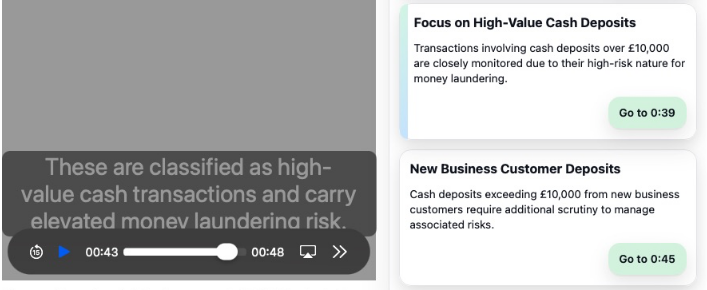
In the captured example, Go to 0:39 moved the player to 39 seconds; playback continued before it was paused. The screenshot capture renders the video picture grey, but its captions and time controls are visible. A standalone audio example was not available in this capture session; the audio behavior above is verified from the viewer implementation.
Audio/video embedded inside a learning package uses the SCORM navigation path, which also needs the correct lesson and embedded media target. Standalone recording captions and SCORM captions are handled differently.
Playback problems
If the source is visible but will not play, try the player controls and check volume. Ask support to check the file format/codec if the problem persists. A recognised extension does not guarantee Safari can decode every file with that extension. See file-type coverage.