
Add an MCP tool to an AI agent
Connect a third-party server in MCP Tool Store and assign it to an agent.
What you will achieve
Connect a third-party MCP server, choose its available tools, and add that capability to an existing AI agent. This recipe uses Atlassian and Claude Test AI agent as examples; use the server and agent appropriate to your organisation.
MCP Tool Store and agent MCP Tools are optional capabilities. They must be enabled for your deployment, account, and agent type.
1. Add the server in MCP Tool Store
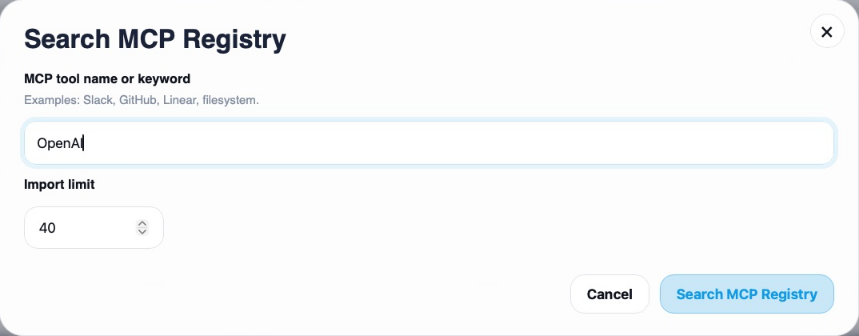
Open More.. → Super Admin → MCP Tool Store. Use Search MCP Registry to find a compatible remote server, review the result, and choose Save To Store. Check the publisher and configuration before saving.
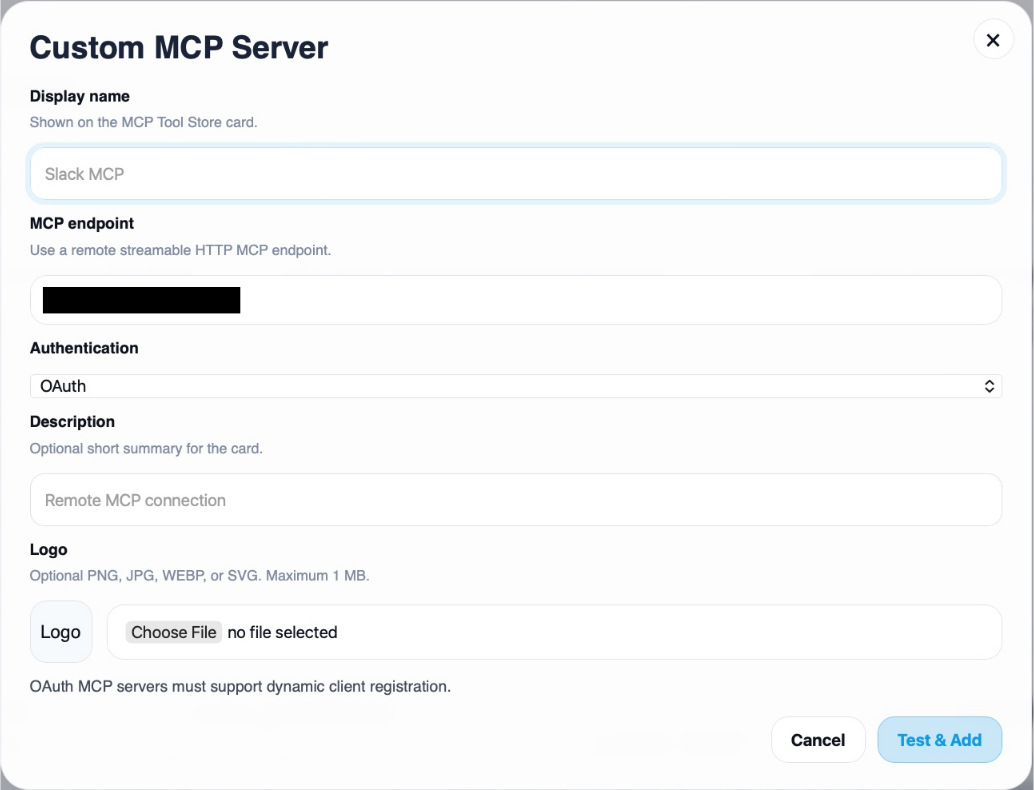
For a server outside the catalog, choose Custom MCP Server. Enter its name and the connection details supplied by your administrator or provider, choose the required authentication, then use Test & Add.
2. Connect and activate
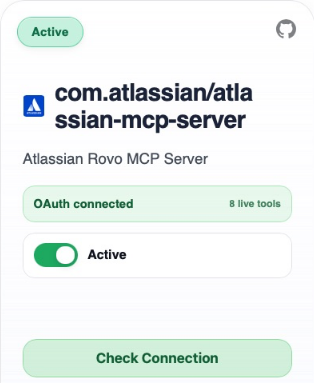
Open View Configuration and complete the server’s required settings. For an OAuth provider such as Atlassian, choose Connect OAuth, sign in to the intended provider account, and review the requested permissions. Complete authorisation and return to Talvi.
Use Check Connection and inspect the card’s status. Once authentication is ready, ensure the server is Active.
3. Choose the tools
Select Preview Tools to inspect the available operations and their inputs. Use Refresh Live Tools when you need the current catalog. Enable the operations the agent should be able to use.
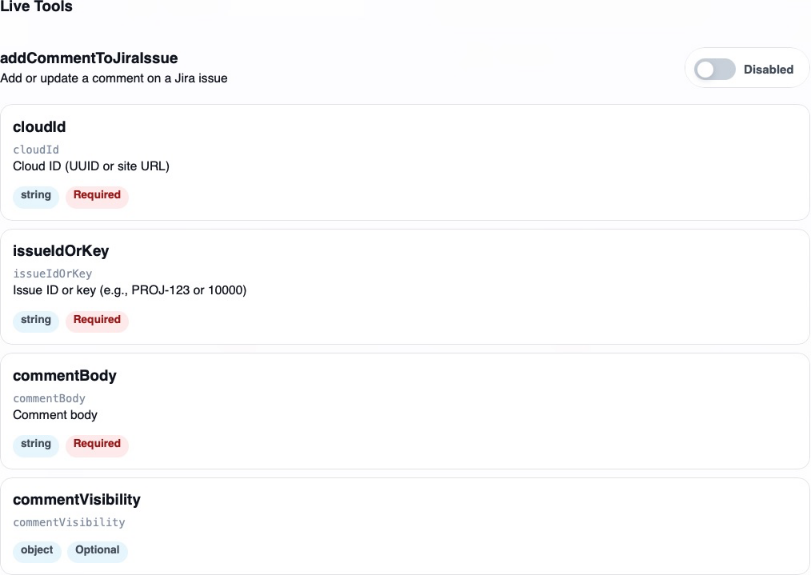
A connected server alone is not enough: it needs enabled tools and an agent assignment. Provider permissions also determine the resources those tools can access.
4. Assign it to Claude Test AI agent
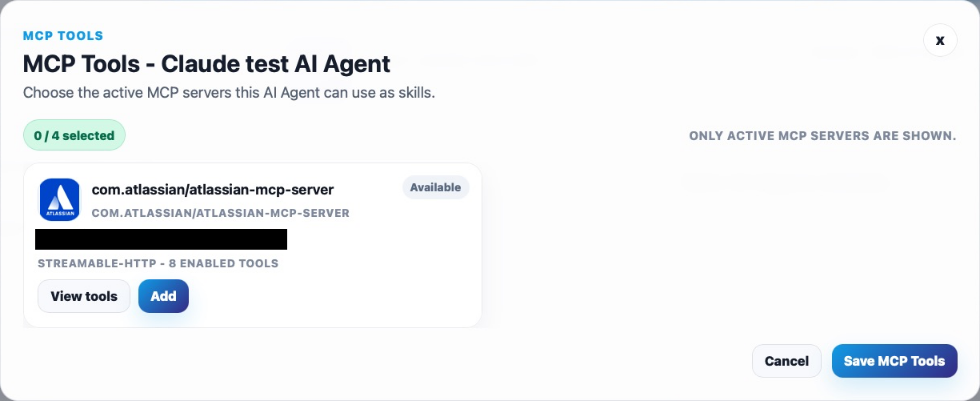
Open More.. → Super Admin → AI Agent Studio. In the custom agent list, open Claude Test AI agent, then select MCP Tools.
Choose View tools to check the server’s capabilities, then Add it to the agent. Review the selected servers and choose Save MCP Tools. The selector displays its limit; the current flow supports up to four servers.
5. Try the new capability
Return to the agent and ask for a task relevant to an enabled tool and a resource the connected account may access. Start with a read-only task, such as finding information, and check the result.
Result: this AI agent can now call the enabled tools exposed by the assigned third-party MCP server when appropriate to a request. Availability still depends on the server being active, its connection working, and the provider’s permissions.
This adds external tools to a Talvi agent. To make Talvi knowledge available inside Claude or another assistant, follow Talvi MCP Server instead.
See also: MCP Tool Store reference · Manage an agent’s skills.