
Talvi MCP Server
Use Talvi knowledge, source viewers, and Nuggets from a connected AI assistant.
Bring Talvi into your AI assistant
The Talvi MCP Server lets a compatible AI assistant use an authorised Talvi AI Agent and its knowledge. You can ask a question in Claude, for example, and receive an answer grounded in Talvi’s sources without moving the conversation into Get Answers.
MCP means Model Context Protocol: a shared way for an assistant to discover and call tools. Talvi supplies the knowledge and tools; the client supplies the conversation interface. The client’s support for interactive content determines how a source appears.
This is an optional deployment capability. An available Talvi website does not automatically mean an MCP endpoint or MCP access keys are enabled. Ask your administrator for the supported connection details.
Choose a client
| Client | Start here | What to expect |
|---|---|---|
| Claude | Connector and workflow skill | Illustrated setup and an interactive SCORM example. |
| Microsoft Copilot Studio | Work-account setup | Administrator configuration using Microsoft’s MCP wizard. |
| ChatGPT | Custom MCP connection | Developer-mode connection guidance and validation steps. |
| Slackbot | Slack MCP client setup | Workspace app configuration and individual authorisation. |
All routes start with an eligible agent, a user-specific MCP access key, and the MCP access URL provided by your administrator.
Authorise your connection
For an OAuth connection, the assistant opens Talvi’s authorisation page after its own setup or confirmation steps. Enter the MCP access key provided by your administrator in Talvi MCP access key and select Connect Talvi. The key determines which user, AI Agent, and dataset the assistant can access.
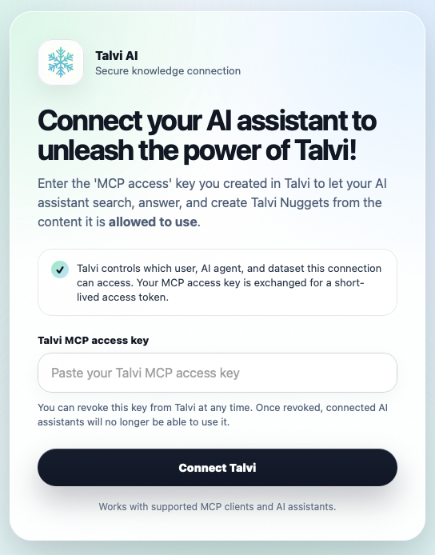
See MCP access keys and authorisation for the shared flow, or Claude’s connection confirmation for its additional browser step. Clients configured for direct API-key authentication collect the key in their own credential settings.
Add the Talvi workflow to your assistant
The MCP connection supplies tools and authorised knowledge. The Talvi MCP Workflow instructions teach the assistant how to combine them: answer from Talvi first, use the returned source locations, focus on a selected file, and create Nuggets when requested.
| Surface | Where the workflow belongs |
|---|---|
| Claude | Upload the workflow skill alongside the Talvi AI connector. |
| Copilot Studio | Upload a skill or configure agent instructions, depending on the agent experience. |
| ChatGPT | Package the skill with the Talvi MCP connection. |
Prepare the downloaded skill for another client
Get the workflow package through AI Agents → Access keys → Claude Skill. For another surface, ask your administrator to prepare a client-specific copy:
- Use the exact filename SKILL.md, retaining the YAML
nameanddescriptionat the top. The supplied archive currently usesSkill.md. - Replace Claude-only activation wording and connection aliases with the target assistant and its connected Talvi tools.
- Remove fixed demo destinations. Use an appropriate link returned by Talvi or the organisation’s administrator-provided destination; do not publish server addresses or credentials in the skill.
- Preserve the answer-first rule. Some older file-focused examples say to search first; source discovery must still follow the answer tool and only run when its result permits fallback.
- Make viewer instructions conditional on client support. Instructions cannot add an inline player to a client that does not render it.
The skill is workflow guidance, not a connection credential or a source dataset. Uploading it as an ordinary reference document does not establish that the assistant will activate it as a skill. Keep its version aligned with the deployed Talvi tools.
How a question becomes an answer
- You ask the connected assistant to use Talvi.
- Talvi identifies the user, AI Agent, and dataset from the connection’s credential.
- The answer tool retrieves relevant knowledge and runs Talvi’s grounded answer flow.
- The result includes an answer and source references. In a compatible MCP Apps client, it also prepares the top cited source for display.
- You can select another source, ask a file-focused follow-up, or request a Talvi Nugget.
For example: “Use Talvi to explain what information a payslip should include, and show the source.” The answer should retain the source references so you can check it. If no relevant evidence is returned, the assistant should make that clear rather than presenting its general knowledge as a Talvi answer.
The server reuses the platform’s retrieval, answer, Talk to File, and Nugget services. A connector does not need you to type internal dataset names or agent IDs into each question.
Tools you may see in the client
These are the current tool names. Clients may display them as readable labels with spaces.
| Tool | Purpose |
|---|---|
ask_talvi_with_source_viewer |
The starting point for a knowledge question: a grounded answer, source references, and the primary-source viewer information in one call. |
open_source_file_viewer |
Opens another returned source in the interactive viewer at its supplied location. |
talk_to_file |
Answers a follow-up using one selected file rather than the whole dataset. |
create_talvi_nugget |
Generates a learning resource from a topic and Talvi evidence. |
prepare_source_file_view |
Validates a returned source and prepares a temporary authorised viewing link. Usually handled for you. |
load_source_file |
Supplies available text or file content when the client cannot display the interactive viewer; PDFs can include an image of the cited page. |
search_knowledge_base |
Fallback discovery after the answer tool returns no source chips. It requires the preceding response reference and is not the normal first step. |
report_source_viewer_event |
Internal viewer diagnostics, such as whether a source loaded. You do not normally request this yourself. |
Follow the source to the right place
Talvi carries the source identity and location alongside the answer. The assistant should reuse this information unchanged when opening a source.
| Source | Navigation supplied by Talvi |
|---|---|
| Cited page and available highlight information. The MCP viewer can render a page image where browser PDF embedding is unreliable. | |
| Audio or video | The relevant timestamp. Use the player to listen or watch in context; playback may need a manual Play action. |
| SCORM | The package’s launch entry and available module, slide, media, or learning-location metadata. The actual course runs inside the viewer. |
| HTML or text | A browser-native view or available extracted text. |
| DOCX or PPTX | Current MCP inline conversion is not connected. Use available native/extracted content or the source-opening option instead. |
SCORM courses have their own menus and may restore a saved position. Check the displayed section against the citation; use the course controls if it opens at a different position. Source formats supported for import and those rendered inline are different: see supported file types.
Viewer controls include Reload, Expand, and Open where supported. Expand depends on the host’s display capabilities. Source links are temporary; request the source again if an old link expires. See the Claude example, PDF guide, media timestamps, and SCORM navigation.
Talk to one file and create Nuggets
After a source appears, ask “Use only this file to explain the next step.” Talk to File uses the selected source’s metadata. It should say when that source does not contain enough evidence. This is the MCP equivalent of a focused Talvi Coach conversation.
To create reusable content, specify the format: “Create a checklist Talvi Nugget about issuing payslips.” Supported formats are lesson, how-to guide, checklist, support script, info sheet, quiz, and flashcards. Nugget creation generates and saves content through Talvi; it is more than a search. Follow the returned result into your own Talvi instance and use its normal review and publication workflow.
MCP Server or MCP Tool Store?
Talvi MCP Server: an external assistant calls Talvi’s knowledge tools.
MCP Tool Store: a Talvi agent receives external tools, such as an Atlassian connection.
Enabling one does not automatically enable the other. Their credentials, permissions, and setup screens serve different purposes.