
Connect Microsoft 365 Copilot & Teams
Import the Talvi-supplied app ZIP, govern its audience, and connect each user to Talvi.
Use the Talvi app supplied for your organisation
Talvi can provide a Microsoft 365 agent app ZIP that connects Microsoft 365 Copilot to Talvi MCP Server. Your Microsoft 365 administrator imports and governs the app. When the package and tenant support Teams, it can also be made available through the approved Teams experience.
The ZIP contains the app definition, Talvi branding, agent instructions, and MCP connection configuration for the agreed deployment. It does not need to contain your dataset or an individual’s MCP access key. Obtain the completed package from Talvi rather than uploading development templates or creating your own credential-sharing workaround.
You need an eligible Microsoft work environment, the appropriate administrator permissions, an MCP-enabled Talvi instance, and access to the intended Talvi AI agent. Your Talvi and Microsoft administrators coordinate the rollout.
1. Add the supplied ZIP
In Microsoft 365 admin center, open Agents → All agents, then Add agent. Tenant interfaces can instead label the entry Upload custom agent.

On Upload agent, choose the Talvi-supplied .zip file and allow validation to finish. Keep it as a ZIP.

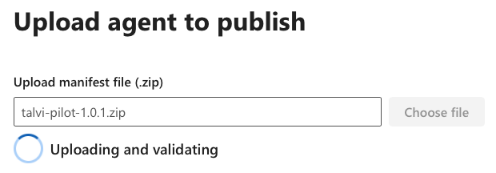
Check the displayed identity and supported products, choose the approved users or pilot group, review permissions, then finish publishing. This follows Microsoft’s custom agent upload workflow. Names and wizard layout vary with Microsoft’s tenant experience.
2. Review Talvi in the agent registry
Search for Talvi in All agents and open its record.

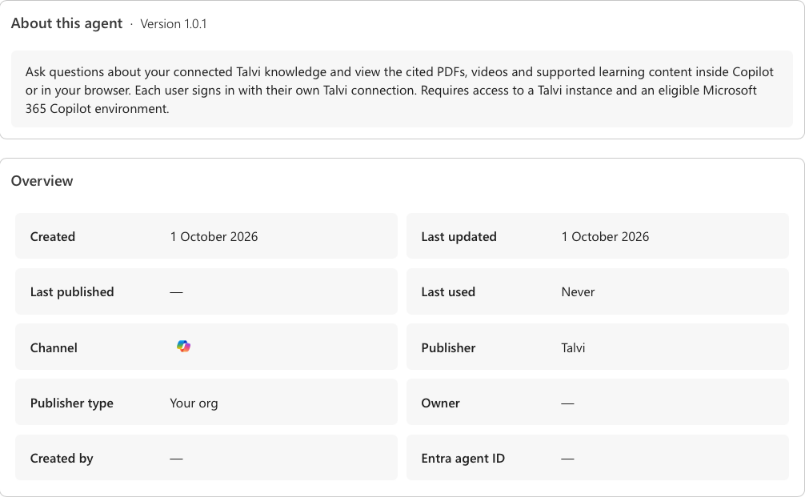
The record helps your administrator verify which app is being published. Version, dates, status, and usage figures in screenshots are examples; review the values for your installed package.
3. Apply Microsoft 365 and Teams governance
Your Microsoft administrator controls app availability and the approved audience. Review the Users, Data & tools, Permissions, Security, and Activity areas available for the Talvi record. Use Block or the applicable removal controls when the app should no longer be available. Available actions depend on agent type and tenant configuration. See Microsoft’s agent registry.

For Teams, the Teams administrator should also review app availability and audience in Teams admin center → Teams apps → Manage apps, along with applicable installation and pinning policies. A Copilot-capable package does not automatically provide every Teams bot or channel capability; use the host products included in your Talvi package. Microsoft describes the responsibilities in Teams app governance.
4. Each user connects to Talvi
Once the app is available, the user opens the Talvi agent in the supported Microsoft surface and completes Talvi authorisation when prompted. Use the MCP access key created for that user and AI agent, supplied through the administrator’s approved process.
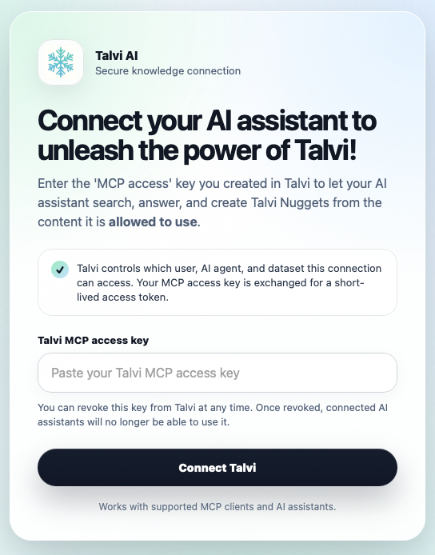
The Microsoft app defines the available experience; the individual Talvi credential identifies the knowledge connection. Publishing the same app to a group does not grant everyone the administrator’s Talvi access. Never put a shared key in the ZIP or in the agent’s chat instructions.
Ask about content available to the connected agent and follow the returned sources. A PDF page, media timestamp, or SCORM section can open through supported source viewers or a browser route. Check the actual experience for your client, content, and package before expanding the audience.
Maintain the connection
Coordinate package updates with Talvi and your Microsoft administrator. If the agent is unavailable, check Microsoft audience assignment and app policy, then the Talvi account, intended agent, credential, and connection expiry. Review the client’s handling of long requests before retrying generation work.
For custom-built agents in Copilot Studio, use the separate Copilot Studio MCP connection guide. A separately configured Talvi Microsoft Teams app output uses its own app integration credential; that credential is not an MCP access key.
See Security and Governance for access review and offboarding, and Talvi system overview for source and infrastructure responsibilities.