
Connect Microsoft Copilot Studio
Configure a work-account agent with Talvi MCP tools and per-user authentication.
Before the administrator starts
This is a configuration guide for a Microsoft work account with access to Copilot Studio. The available connection options depend on your organisation’s Microsoft configuration. The screenshots below illustrate Microsoft’s setup wizard.
Prepare an eligible Talvi agent, the MCP access URL provided by your administrator, and an MCP access key for the intended user. Talvi supplies a Streamable HTTP endpoint. Use that endpoint rather than a web-chat URL.
Add Talvi through the MCP wizard
Open the Copilot Studio agent, then Tools → Add a tool → New tool → Model Context Protocol. Enter a name, description, and server URL. For an OAuth-enabled Talvi deployment, choose OAuth 2.0 → Dynamic discovery, create the connection, and proceed to the connection dialog. Choose or create a connection and add it to the agent. Microsoft documents this sequence in its MCP onboarding guide.
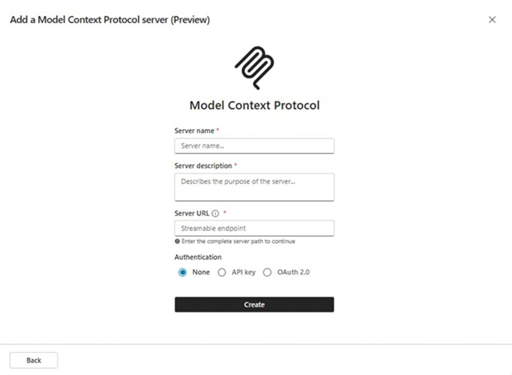
Screenshot: Microsoft Learn, MCP onboarding wizard. The example shows an unconfigured form; Talvi requires authentication.
Use these Talvi-specific values:
| Field | Value |
|---|---|
| Server name | Talvi AI |
| Description | Answer questions from the connected Talvi AI Agent’s knowledge, retain source references, and create Talvi Nuggets when requested. |
| Server URL | The MCP access URL supplied by your Talvi administrator. |
| Authentication | OAuth 2.0 with discovery when enabled and compatible with the deployment. |
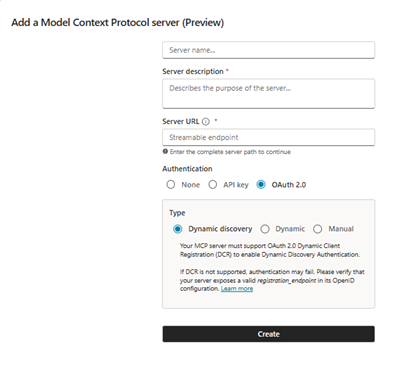
Screenshot: Microsoft Learn, OAuth dynamic discovery.
When redirected to Talvi, enter the selected user’s MCP access key and complete Connect Talvi. Talvi supports discovery, automatic registration, and PKCE. Validate the complete connection in your tenant before rollout.
The Talvi authorisation screen shows the Talvi MCP access key field and Connect Talvi button. Enter the key provided by your administrator for your user and AI Agent. This shared screen appears during OAuth setup; any preceding confirmation belongs to the client you are connecting.
API-key alternative
The wizard also supports API key → Header authentication. Set the header name to X-API-Key and supply the user’s Talvi key when creating the connection. This is an alternative to OAuth, not an additional chat prompt. See Microsoft’s authentication options.
Preserve the user’s identity
Microsoft distinguishes End user credentials from Maker-provided credentials, and organisational data policies can block tools. Confirm the permitted authentication model with your administrator. See Microsoft’s tool configuration guidance.
For Talvi, the credential determines whose agent and dataset are used. Do not assume that signing into Microsoft automatically supplies a matching Talvi identity. Test as a second user before sharing the agent: a maker’s working test connection is not proof of individual Talvi access for everyone.
Add the Talvi workflow
Choose the route that matches your Copilot Studio agent. Complete the MCP connection first; a skill cannot supply missing tools or authentication.
Agents with a Skills component
Microsoft documents direct skill upload for agents powered by the GitHub Copilot harness. In that experience, open Build → Skills → Add skill → Upload a skill. Upload a Markdown file or ZIP containing SKILL.md with YAML name and description, then let validation complete. See Microsoft’s skill upload guide.
Upload the client-specific Talvi workflow. Its description should make clear that it applies when users ask the agent to work with Talvi knowledge, source files, or Nuggets. Check activation and tool use in Preview. This Skills option is not present in every Copilot Studio agent experience.
Standard agents using Instructions
Use Overview → Instructions → Edit. Add the Talvi workflow as behavioural instructions, using / to select the actual configured tools where available. Test in the test pane and publish changes to update an already-published agent. Keep Copilot’s built-in source display behaviour intact. See Microsoft’s instructions guidance.
Use this concise Talvi-specific starting text and match the tool names to your connected catalog:
For requests about Talvi knowledge, call ask_talvi_with_source_viewer first.
Use its returned answer. Say when the result does not contain enough evidence.
Do not present general model knowledge as content retrieved from Talvi.
Call search_knowledge_base only when the answer result sets
should_fallback_to_source_search to true; pass the returned response_id
unchanged as after_answer_response_id.
For a selected source, use open_source_file_viewer with the exact returned
source arguments. Preserve page, timestamp, and course-location metadata.
If the client cannot display the viewer, use load_source_file with the
returned arguments when the user requests the source.
Use talk_to_file for a question limited to a selected file, using its exact
returned metadata. Never invent file locations or identifiers.
Create a Talvi Nugget only when requested. If its format is unclear, ask
which format: lesson, how-to, checklist, support script, info sheet, quiz,
or flashcards. Use the corresponding supported tool value.
Do not request access keys in chat. Authentication is handled by the connection.
Keep this guidance in Instructions, rather than uploading the workflow as dataset knowledge. The full skill can serve as an administrator’s reference when extending it. Preserve the tool schemas and allowed Nugget types from Talvi MCP Server.
Test answers before sharing
Ask a question about material available in the connected AI Agent’s dataset. Check that the agent calls ask_talvi_with_source_viewer, retains the returned sources, and does not use fallback search as its first operation. These are Talvi’s workflow requirements; add them to the agent’s instructions where appropriate.
Test one supported question, one unsupported question, and one file-focused follow-up. Validate authentication again after a token expires: Talvi’s current OAuth implementation does not issue refresh tokens. Rendering depends on the client surface; validate source viewing separately and use available native content when an inline viewer is absent.