
Configure an embedded AI Agent
Set the website bot’s appearance, allowed sites, and optional calls to action.
Open the embedded agent
From AI Agent Studio → Custom AI Agents, open an agent with Talvi Embeddable AI Bot output. Its workspace includes logs, chat history, reports, View Config, and Custom CTA Actions, where permitted.
The mission and mentoring journey are managed in the same way as other custom agents. Website configuration controls how the bot is presented to visitors.
Configure the widget
Select View Config. Set the widget title, subtitle, logo, welcome message, and initial appearance. Closed starts with the chat icon; Open shows the text input.
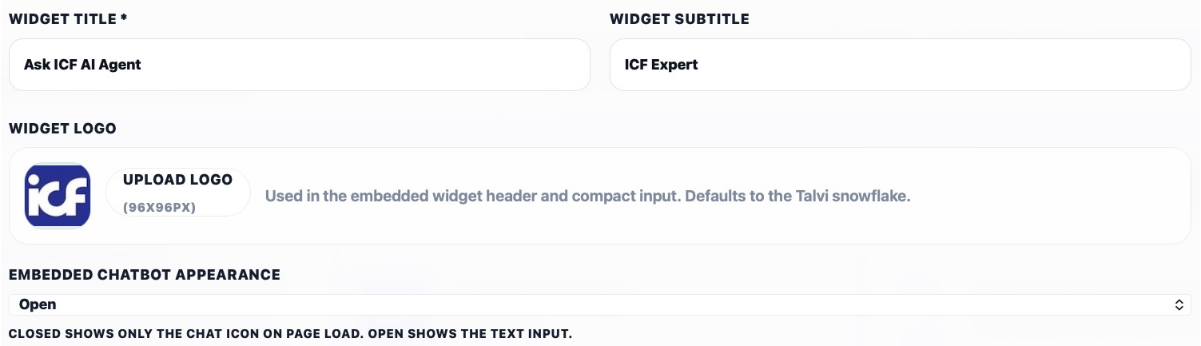
Allowed origins specifies which website origins can use the widget. Enter each permitted origin on its own line, including the scheme and host, and a port where needed. Use the actual website values for your deployment. Select Save Config to apply changes, or Cancel to leave them unchanged.
Use the embed snippet supplied on the agent page when adding the bot to a website. It contains the deployment address, agent ID, and the appropriate publishable key. A publishable widget key is different from a private MCP or app integration key.
Custom CTA Actions
Open Custom CTA Actions to manage links offered during a conversation. The list brings together each CTA’s title, triggers, message, destination, preview image, status, and usage statistics. Shown and clicked counts help you understand whether visitors engage with the action.

Create a CTA button
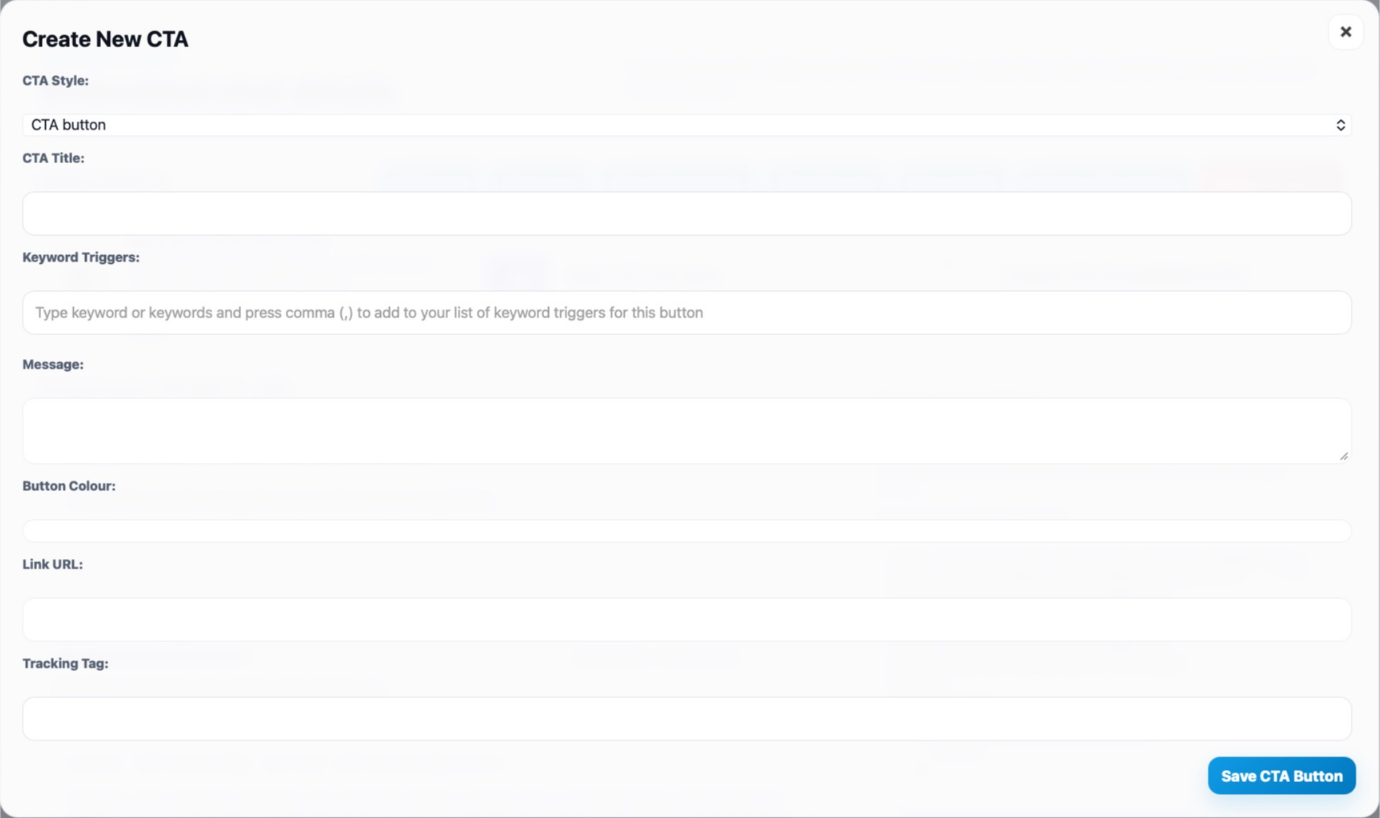
- Select Add CTA Button and choose CTA button as the style.
- Enter a clear title and comma-separated keyword triggers relevant to the intended conversation.
- Write the message that accompanies the action, choose the button colour, and enter its destination URL.
- Add a tracking tag if you need to distinguish this action in your reporting, then save.
For example, a payslip support button could lead to your payroll help page. Use a destination your visitors can access, and test representative questions to check when it appears.
Create a Web page link preview
Choose Web page link preview for a linked card instead of a standard button. Complete the title, triggers, message, and URL, and optionally upload a preview image. Supported preview images are PNG, JPEG, or WEBP, up to 2 MB.

Back in the list, use Edit CTA to change an action. Pause stops an active CTA from being offered while retaining its settings; Activate makes a paused action available again. Check the status after applying a change.
Embedded Chat Demo Button
The Embedded Chat Demo Button section adds a persistent button in the embedded chat header. Turn it on, set its Button label and Demo URL, and select Save demo button. This is useful for a standing action such as “Book a Demo”; keyword-triggered CTAs are managed separately in Custom CTA Actions.
View Chat History and generate reports
Open View Chat History, choose the start and end dates, and select Get Chat Logs. Use available keyword filters to narrow the conversations. The embedded view includes session start and end, duration, chat history, NPS, feedback, and AI analysis. If the list is empty, check the selected date range and whether visitors have used this agent.
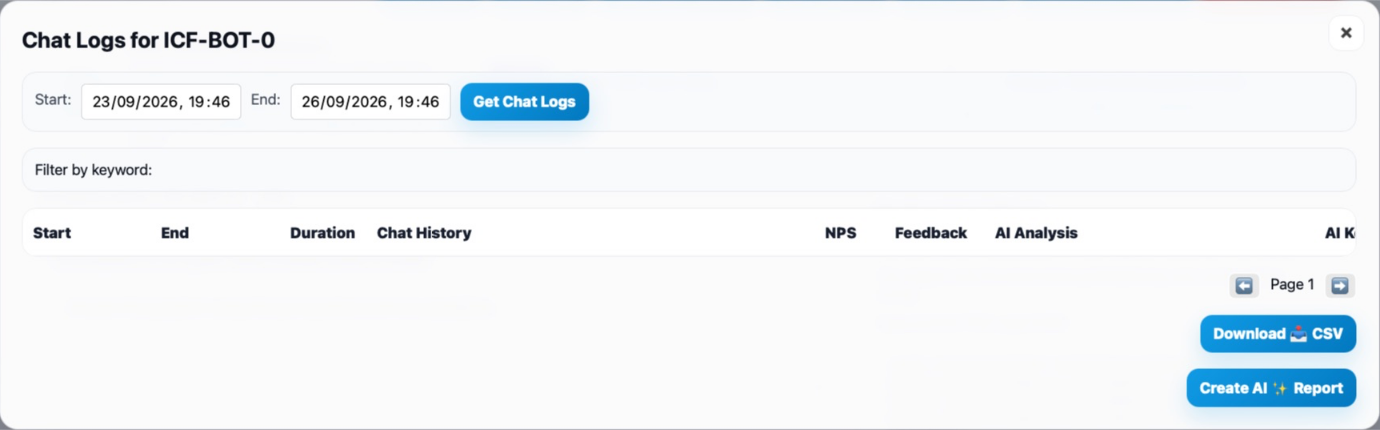
Use the page controls to browse results or Download CSV for further analysis. Select Create AI Report, review the range and filters, give the report a recognisable name, and confirm. See the report confirmation example.
Open View Reports to follow report status and access available View and Download actions. The embedded report list includes keyword filters, total chats, average NPS, and average chat time alongside its name and date range. These measures help compare visitor experience across reporting periods.

MCP Tools, logs, and agent maintenance
Where enabled, MCP Tools uses the same active-server selection workflow as other custom agents. View Logs opens this agent’s activity for investigation. Review individual conversations and feedback before deciding whether a problem comes from the mission, source material, or an external tool.
Use Edit to change the name and the task prompt area to update the mission. Mentoring agents can also expose a journey document and Save Journey. Delete AI Agent uses the deactivation confirmation: it stops use of the agent while retaining associated data.
The embedded workspace differs from the Talvi chat workspace. Its chat history includes visitor feedback, and website access is configured through Allowed origins. Only use audience or feedback controls that are actually offered for the selected output type.
Review the visitor experience
Test the widget on an allowed website: check its opening state, welcome message, representative answers, CTA destinations, and any header button. Use View Chat History, View Logs, and View Reports to review the result.
Slack and Microsoft Teams outputs have their own app connection flows and are not installed by pasting the website widget snippet.